Query your fleet
This guide explains how to query the resources Hub aggregates from your connected control planes. It also covers inspecting a single resource in detail and saving a query as a lens your team can reuse.
Prerequisites
- A Hub install with at least one connected control plane or connected space.
- The base URL clients use to reach
hub-core, the same value ashub-core.api.externalURL. - A Hub access token for an account with read access to at least one realm.
The examples use two shell variables:
HUB_URL=https://api.<your-domain>
TOKEN=<your-hub-access-token>
Step 1: List the aggregated resources
-
Request the resource list.
curl -s "$HUB_URL/apis/hub.upbound.io/v1beta1/resources" \-H "Authorization: Bearer $TOKEN"Each item carries the resource's own identity in
source, its control plane and realm inlocation, and the aggregation metadata inhub. -
Read the count from the response metadata.
{"kind": "ResourceList","apiVersion": "hub.upbound.io/v1beta1","metadata": {"total": { "count": 614, "relation": "eq" },"page": 1,"pageSize": 10}}total.countis the number of resources matching the query, not the number returned. Page through the matches withpageandpageSize.The Console renders the same list at
/explore/resources: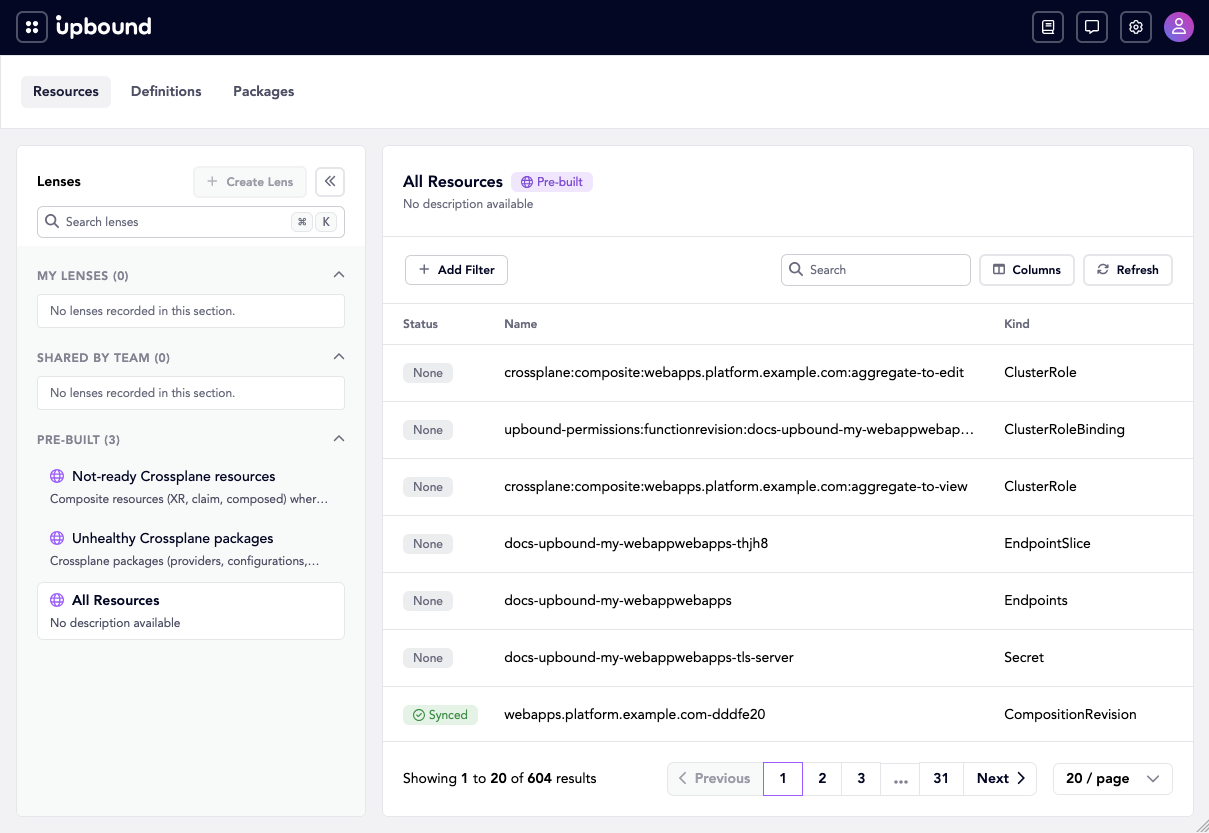
Use hub.upbound.io/v1beta1. The v1alpha1 version accepts the filter
parameter but ignores it, so a filtered query sent to v1alpha1 returns your
whole estate.
Step 2: Narrow the list
-
Search by name with
search.curl -sG "$HUB_URL/apis/hub.upbound.io/v1beta1/resources" \--data-urlencode 'search=kubernetes' \-H "Authorization: Bearer $TOKEN" -
Filter with a CEL expression in
filter.curl -sG "$HUB_URL/apis/hub.upbound.io/v1beta1/resources" \--data-urlencode 'filter=kind == "Pod"' \--data-urlencode 'pageSize=25' \-H "Authorization: Bearer $TOKEN"Reference resource fields as bare identifiers, such as
kindornamespace.The Console builds the same narrowing through Add Filter, which lists the fields you can filter on:
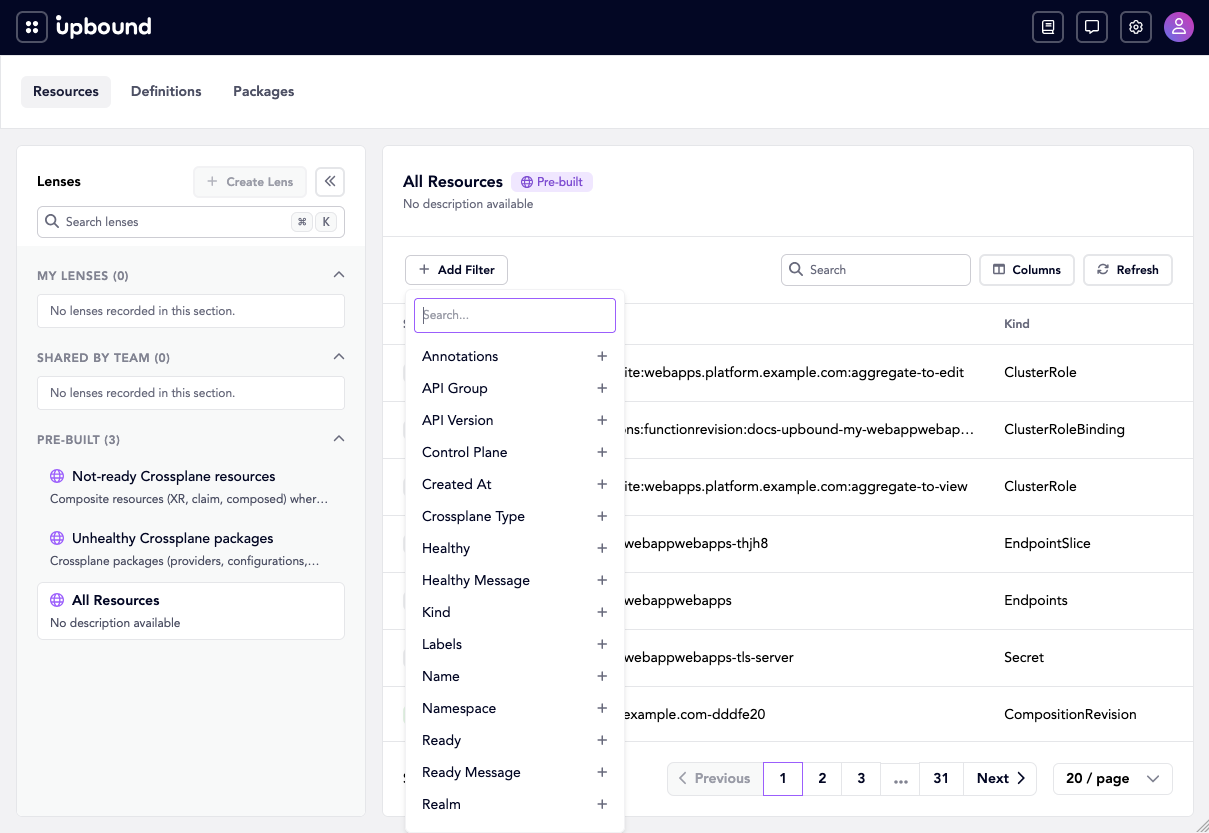
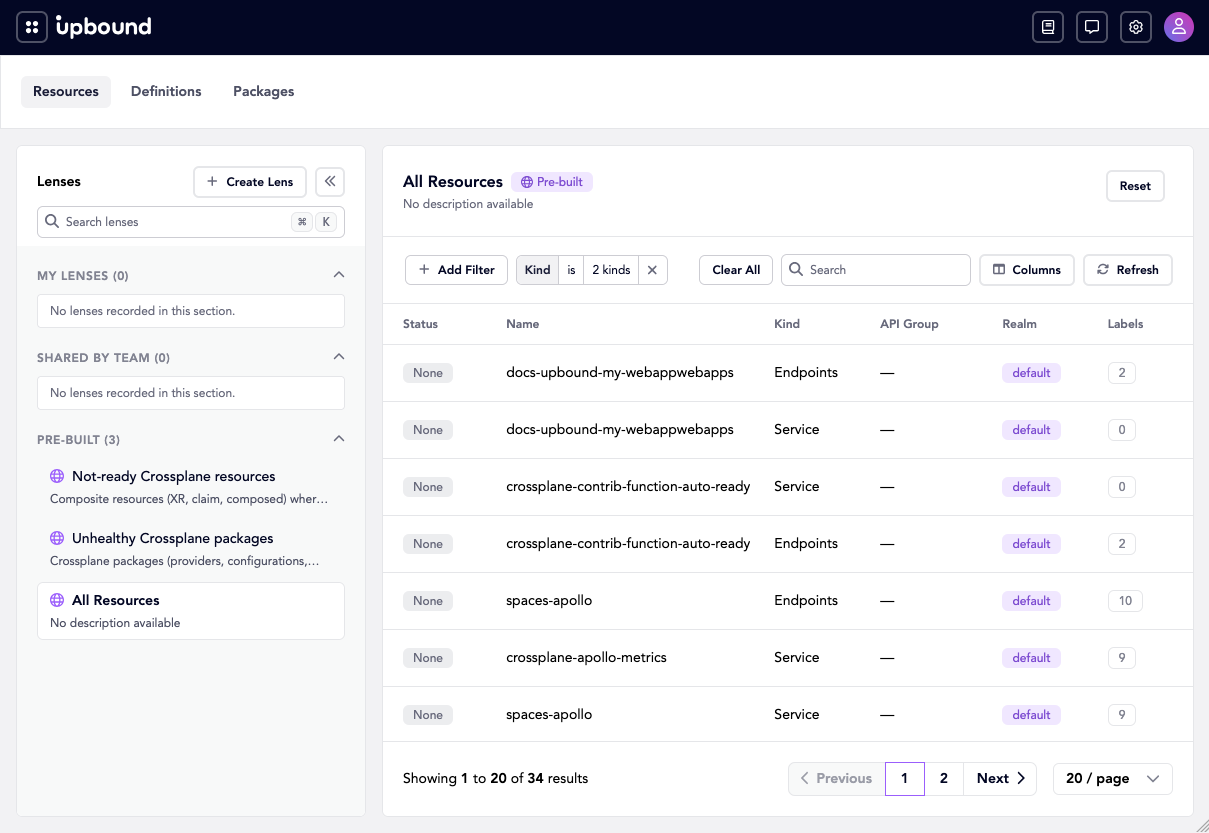
An applied filter shows as a chip over the list, with the match count updated:
-
Check
messageif a query returns no items.An invalid expression returns the CEL parse error rather than an empty result:
{"message": "ERROR: <input>:1:1: undeclared reference to 'source'\n | source.kind == \"Pod\"\n | ^"}
Step 3: Inspect one resource
-
Get the resource by the name Hub assigned it.
The name in
metadata.nameis Hub's identifier, such asdefault.default.eb8a0fbd0b83f39b, not the resource's own name.curl -s "$HUB_URL/apis/hub.upbound.io/v1beta1/resources/$NAME" \-H "Authorization: Bearer $TOKEN" -
Read its events.
curl -s "$HUB_URL/apis/hub.upbound.io/v1beta1/resources/$NAME/events" \-H "Authorization: Bearer $TOKEN" -
Follow its relationships.
curl -s "$HUB_URL/apis/hub.upbound.io/v1beta1/resourcerelationships/$NAME" \-H "Authorization: Bearer $TOKEN"resourcerelationshipsreturns the resources one resource composes, the ones it references, and the ones that reference it. For the whole composition tree below a composite resource, requestresourcerelationshiptrees/$NAMEinstead. Both endpoints answer for a single resource, so a request without a name fails.The Console shows all three in one detail drawer, with the object itself on the YAML tab:
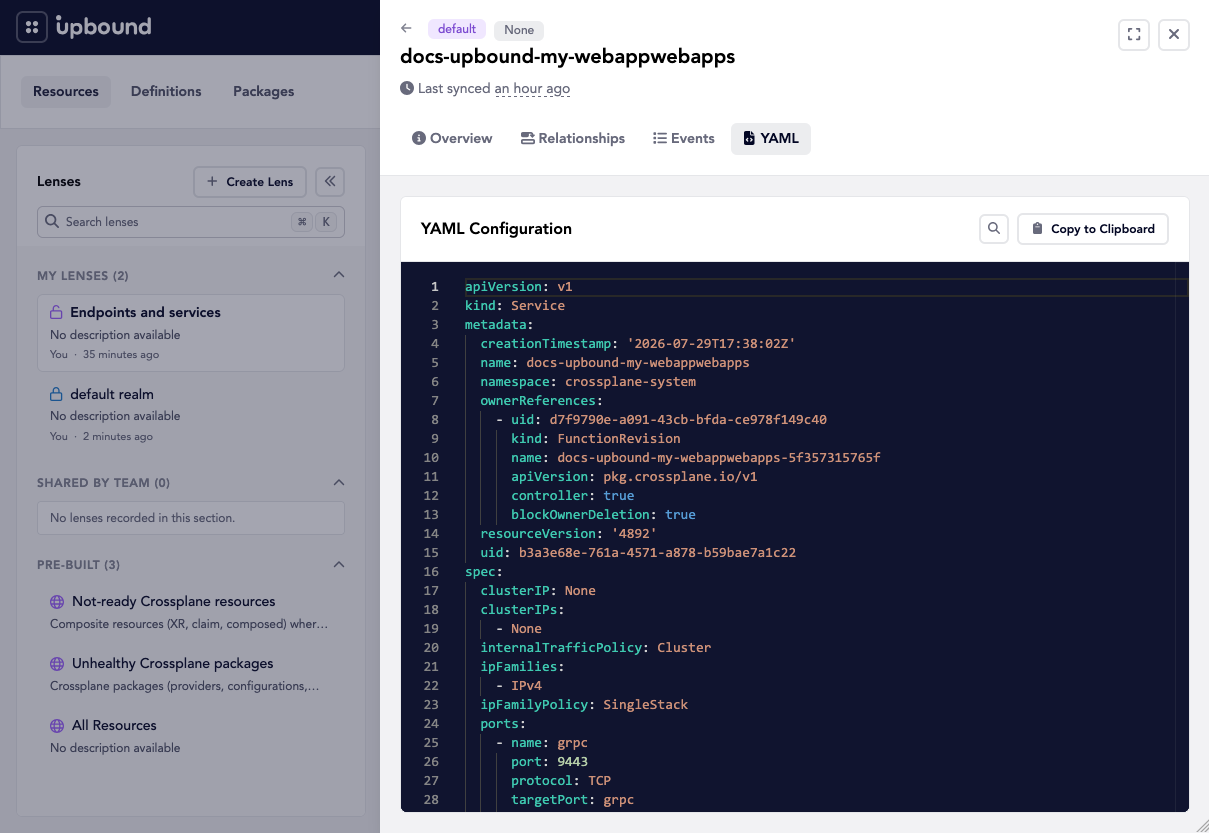
Step 4: Count without listing
Post an empty spec to resourcestats to count everything the caller can see.
curl -s -X POST "$HUB_URL/apis/hub.upbound.io/v1beta1/resourcestats" \
  -H "Authorization: Bearer $TOKEN" \
  -H "Content-Type: application/json" \
  -d '{"apiVersion":"hub.upbound.io/v1beta1","kind":"ResourceStats","spec":{}}'
The response groups the count by condition, which is what the Console dashboard renders:
{
  "results": {
    "summary": {
      "totalCount": 614,
      "readyTrue": 27,
      "readyFalse": 0,
      "readyUnknown": 587,
      "syncedTrue": 2,
      "syncedFalse": 0,
      "syncedUnknown": 612,
      "healthyTrue": 4,
      "healthyFalse": 0,
      "healthyUnknown": 610
    }
  }
}
A high readyUnknown count is expected. Kubernetes resources that don't report a
Ready condition, such as Endpoints, count as unknown.
Step 5: Save the query as a lens
A lens stores a filter so you can apply it in the Console instead of rebuilding the query.
-
Create the lens.
curl -s -X POST "$HUB_URL/apis/hub.upbound.io/v1beta1/lenses" \-H "Authorization: Bearer $TOKEN" \-H "Content-Type: application/json" \-d '{"apiVersion": "hub.upbound.io/v1beta1","kind": "Lens","metadata": {"name": "team-a-pods","annotations": { "hub.upbound.io/shared": "true" }},"spec": {"displayName": "Team A pods","description": "Pods the platform team owns.","target": { "kind": "Resource", "apiVersion": "hub.upbound.io/v1beta1" },"filter": { "fields": [ { "field": "kind", "values": ["Pod"] } ] }}}'Hub records who created the lens in its status:
{"status": {"lastUpdatedAt": "2026-07-29T16:50:20Z","createdBy": "keycloak:admin@hub.demo","lastUpdatedBy": "keycloak:admin@hub.demo"}}Set
hub.upbound.io/shared: "true"to give the whole organization access to the lens. Without it, the lens belongs to you. -
Confirm the lens exists.
curl -s "$HUB_URL/apis/hub.upbound.io/v1beta1/lenses" \-H "Authorization: Bearer $TOKEN"Your lens appears alongside the two lenses Hub includes,
crossplane-not-readyandpackages-unhealthy. Those two carry thehub.upbound.io/source: upboundannotation. -
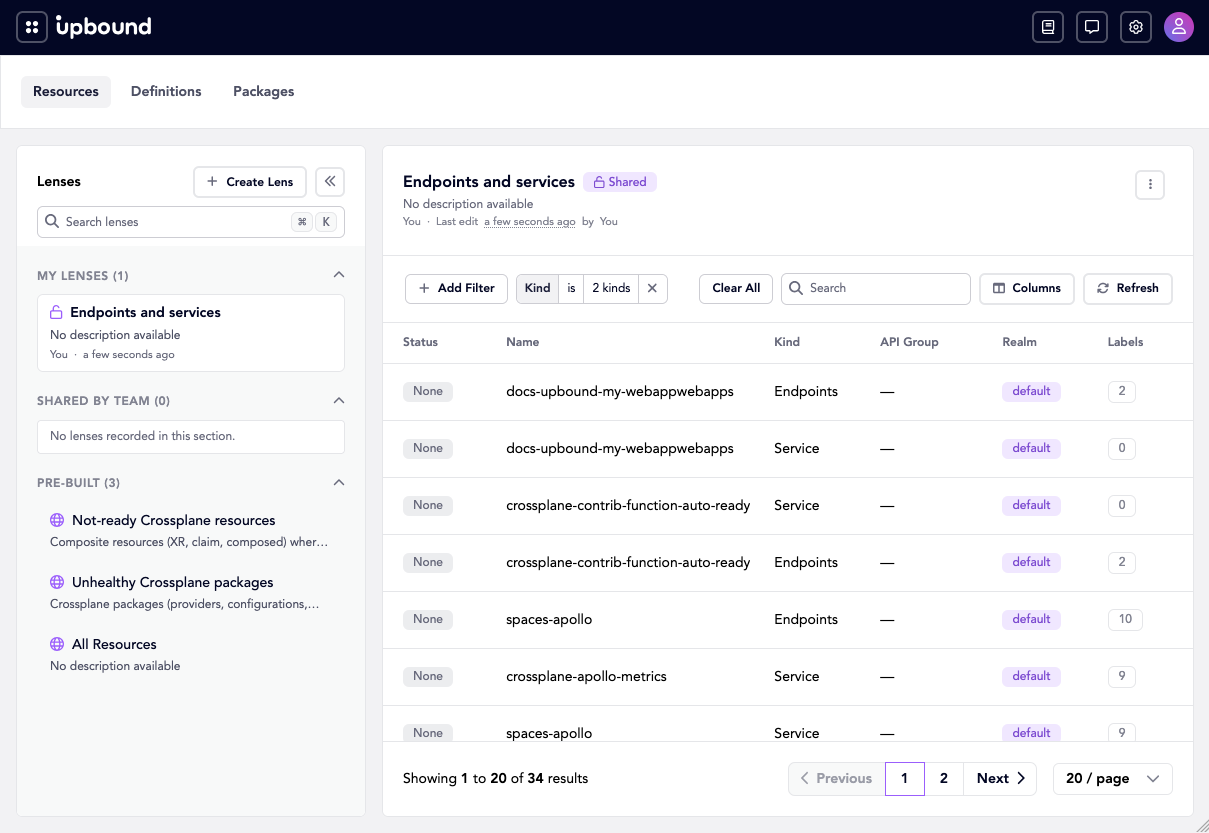
Apply the lens in the Console, on the
/explore/resourcespage.
The sidebar groups the lenses you created separately from the shared ones and the ones Hub includes:
-
Delete the lens when the team no longer needs it.
curl -s -X DELETE "$HUB_URL/apis/hub.upbound.io/v1beta1/lenses/team-a-pods" \-H "Authorization: Bearer $TOKEN"A successful delete returns
204with no body.
Troubleshoot
A query that returns fewer resources than you expect usually means one of three things:
- The caller lacks access. Insights filters every response by realm permissions, so two users running one query get different counts. See RBAC.
- The version ignores your filter.
v1alpha1acceptsfilterand ignores it. Usev1beta1. - The record is stale. Insights serves aggregated data, not a live read.
Check
hub.syncLagSecondson the resource to see how far behind the record fell.