Connect a space
Connecting a self-hosted Spaces cluster to the Upbound platform allows you to observe its resources in the Console or hub API and automatically connects the control planes it manages.
Resources in a connected space appear in the default realm under a control
plane named space-{space-name}. Connected space control planes appear as
{space-name}.{control-plane-name} in the realm corresponding to their
namespace on the space cluster.
To connect a control plane that's not managed by Upbound Spaces, see how to connect a control plane.
Prerequisites
- A space to connect: the Kubernetes cluster running Upbound Spaces whose resources and control planes you want to observe, and a kubeconfig context for it.
- Upbound Platform hub, reachable from the space.
- Access to the Console, or
kubectlconfigured with ahubcontext that targets the hub. - Helm 3.
Step 1: Declare the space
Declare the space in Upbound Platform to assign its name and get a connector registration token.
- Console
- kubectl
- In the Console, open the spaces view.
- Select Create space.
- Enter a name for the space.
- Submit. The Console creates the space and immediately shows its registration token (see Step 2).
Write the space manifest. A space is cluster-scoped and has an empty spec:
apiVersion: hub.upbound.io/v1beta1
kind: Space
metadata:
  name: <space-name>k
Create it. The registration token is only returned in the create response, so capture it now (see Step 2):
REGISTRATION_TOKEN=$(kubectl --context=hub create -f space.yaml \
  -o jsonpath='{.status.registrationToken}')
Step 2: Get the registration token
Capture the registration token from Step 1. Use it to deploy the connector in Step 3.
The Console and kubectl return the registration token only once. This one-time-use token is valid for 24 hours and you can't retrieve it after creation. You may reissue the token, which invalidates the existing token.
- Console
- kubectl
Copy the registration token displayed after you created the space. The Console will not show it again. Set it as an environment variable for Step 3:
REGISTRATION_TOKEN=<paste-registration-token>
$REGISTRATION_TOKEN from Step 1 holds the token. Confirm it is populated:
echo "$REGISTRATION_TOKEN"
The token from the create response cannot be read back later, but you can issue a new token for the same space at any time. Issuing a new token invalidates the previous one:
REGISTRATION_TOKEN=$(echo '{"apiVersion":"hub.upbound.io/v1beta1","kind":"Space"}' \
  | kubectl --context=hub create --raw \
  "/apis/hub.upbound.io/v1beta1/spaces/<space-name>/registrationtoken" \
  -f - | jq -r '.status.registrationToken')
Step 3: Deploy the connector
Deploy the connector to the space. The connector completes the space's registration, syncs its resources, and connects its control planes.
Set the kubeconfig context for the space cluster:
SPACE_CONTEXT=<space-context>
Create a namespace and a secret holding the registration token on the space cluster:
kubectl --context="$SPACE_CONTEXT" create namespace upbound-system

kubectl --context="$SPACE_CONTEXT" --namespace upbound-system \
  create secret generic hub-connector-credentials \
  --from-literal=registrationToken="$REGISTRATION_TOKEN"
Install the connector chart with Spaces integration enabled:
helm install hub-connector oci://xpkg.upbound.io/upbound/hub-connector \
  --kube-context "$SPACE_CONTEXT" \
  --namespace upbound-system \
  --set connector.spaces.enabled=true \
  --set connector.hub.url=<hub-url>
Notes:
connector.credentials.existingSecretRef.namedefaults tohub-connector-credentials. Override it only if you named the secret differently.- Override the provisioned connectors' settings under
connector.spaces.controlPlaneConnector.*(for exampleexcludeResourcesorresources). Each field defaults to the space connector's own configuration.
Step 4: Verify the connector started
Confirm the connector pods reach Ready:
kubectl --context="$SPACE_CONTEXT" --namespace upbound-system \
  wait --for=condition=Ready pod \
  --selector app.kubernetes.io/name=hub-connector --timeout=120s
The space connector deploys a per-control-plane connector into each control
plane's host namespace. Confirm those pods are Ready as well:
kubectl --context="$SPACE_CONTEXT" --all-namespaces \
  get pods --selector app.kubernetes.io/name=hub-connector
Step 5: Observe from Upbound Platform
View the space, its resources, and control planes in Upbound Platform.
- Console
- kubectl
-
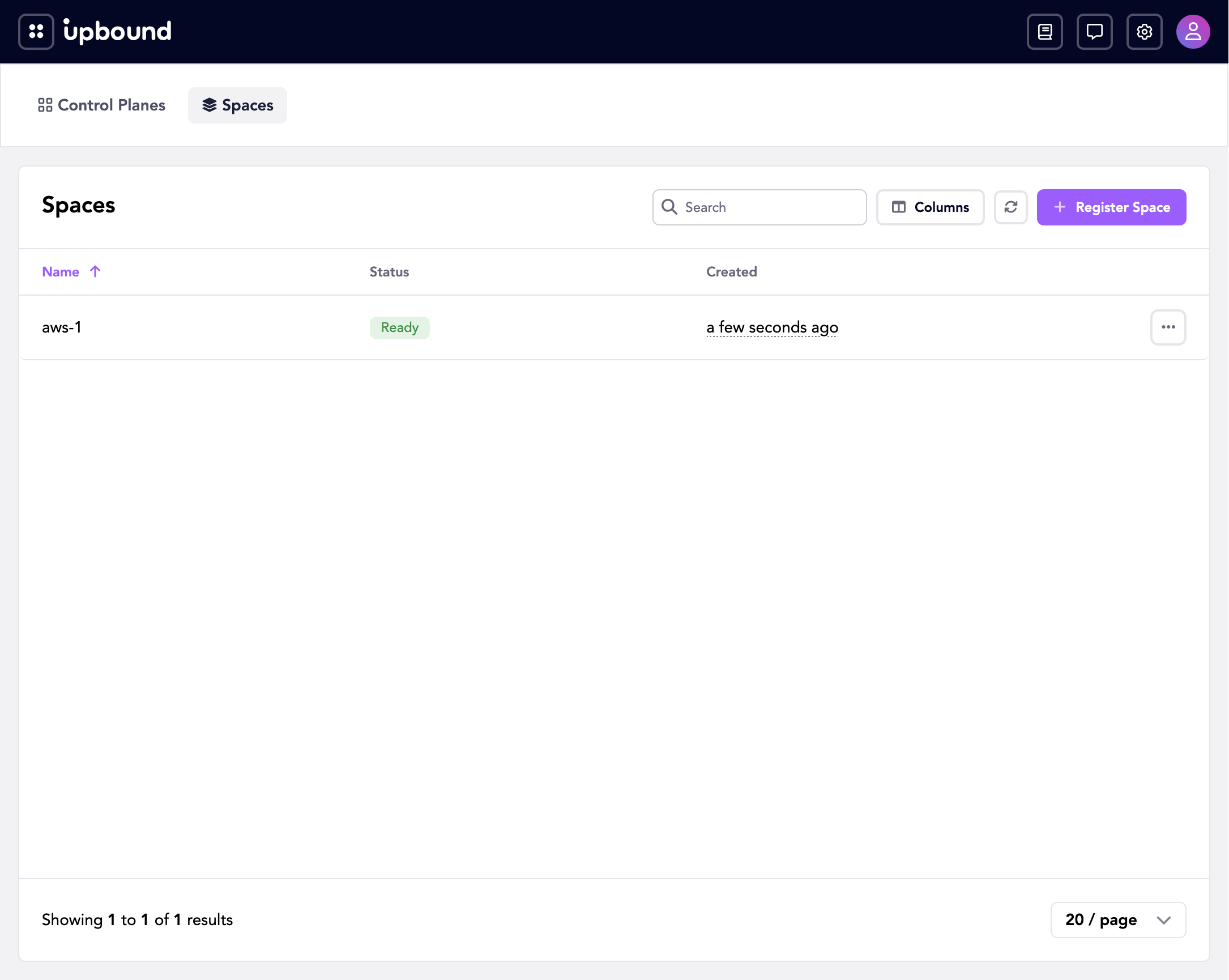
Open the spaces view. The space you created shows a status of Ready.
-
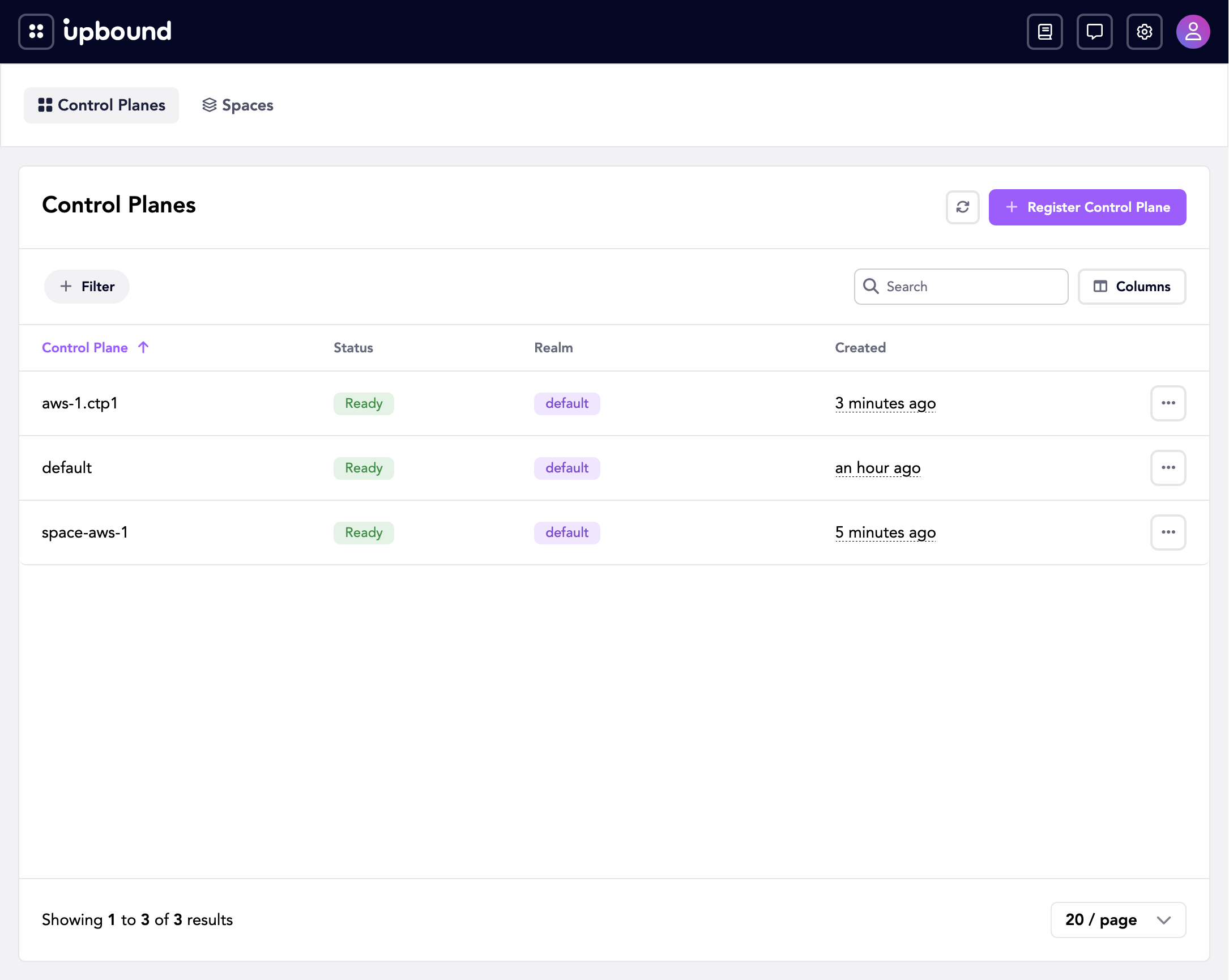
Open the control planes view. Two kinds of control plane appear for the space:
- The representative control plane for the space, named
space-<space-name>, in thedefaultrealm. - The space's member control planes, named
<space-name>.<control-plane-name>. Each is created in the realm that matches its namespace in the space.
- The representative control plane for the space, named
-
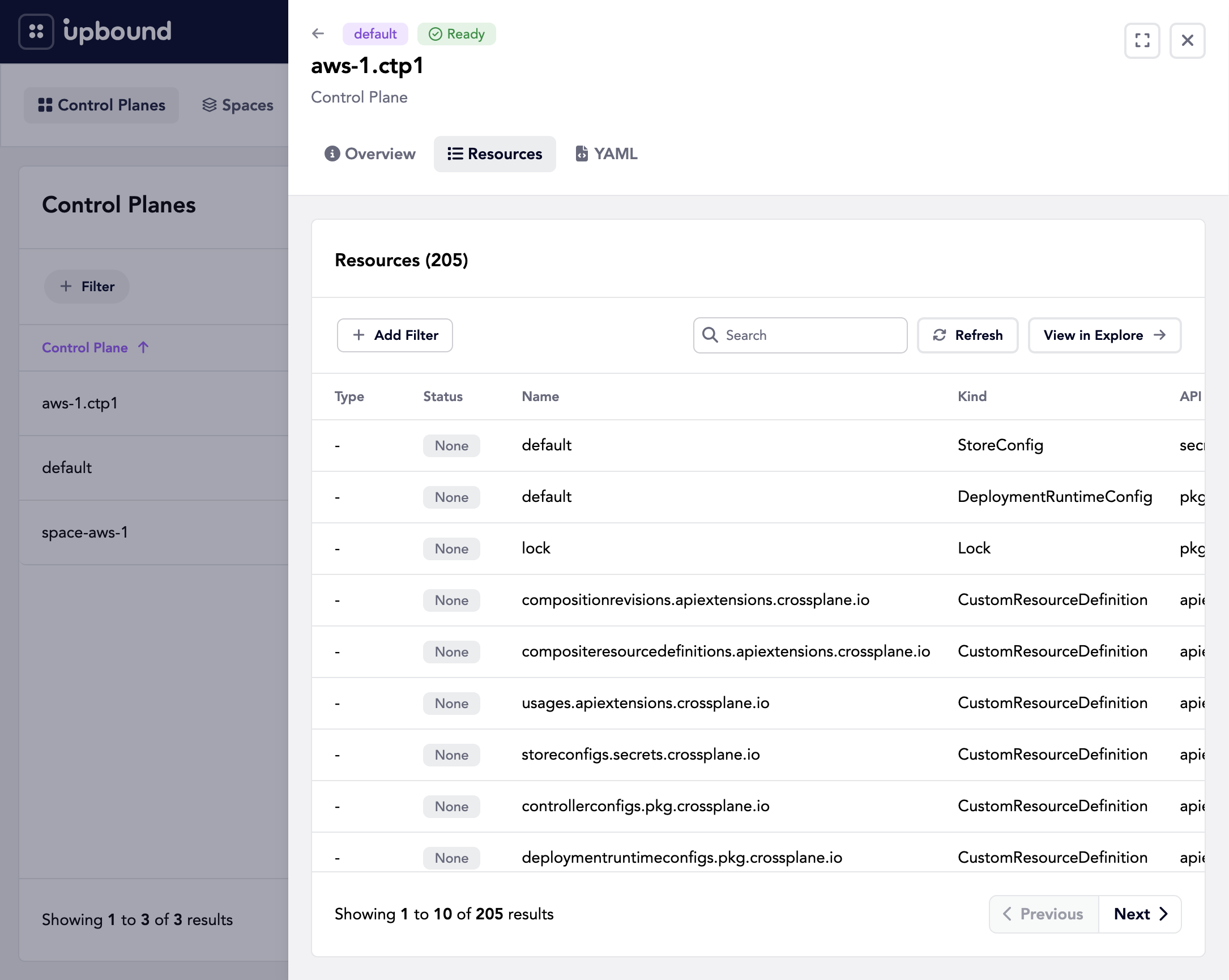
Open a control plane's resources view to see the resources synced from that control plane.
The space reports phase Ready and a populated controlPlaneRef:
kubectl --context=hub get spaces
kubectl --context=hub get space <space-name> -o jsonpath='{.status.phase}'
The member control planes appear as <space-name>.<control-plane-name> in their
realms:
kubectl --context=hub --all-namespaces get controlplanes
List the resources synced across this space. The resources endpoint takes a
space filter:
kubectl --context=hub get --raw \
  '/apis/hub.upbound.io/v1beta1/resources?filter=space==%22<space-name>%22' \
  | jq -r '.items[].metadata.name'
Troubleshooting
The space connector pods don't reach Ready
Check the pod status and events:
kubectl --context="$SPACE_CONTEXT" --namespace upbound-system \
  describe pod --selector app.kubernetes.io/name=hub-connector
The connector needs the hub-connector-credentials secret to exist before it
starts, and the registration token it holds must still be valid. If the token
expired or was already used, reissue it (Step 2), update the secret, and restart
the connector:
kubectl --context="$SPACE_CONTEXT" --namespace upbound-system \
  rollout restart deployment hub-connector
The space stays Pending
A space stays Pending until its connector completes registration. Check the
phase:
kubectl --context=hub get space <space-name> -o jsonpath='{.status.phase}'
If it doesn't become Ready, the connector hasn't completed registration.
Confirm the space connector pods are Ready (Step 4). If the pods are Ready
but the phase stays Pending, the connector can't reach the hub. See the next
section.
The connector can't reach the hub
The connector pushes to the hub at connector.hub.url. From the space cluster,
confirm that URL is correct and reachable, and that any firewall or network
policy allows egress to the hub. Correct the value and upgrade the release:
helm upgrade hub-connector oci://xpkg.upbound.io/upbound/hub-connector \
  --kube-context "$SPACE_CONTEXT" \
  --namespace upbound-system \
  --reuse-values \
  --set connector.hub.url=<hub-url>
Member control planes don't appear
The connector deploys a per-control-plane connector into each control plane's
system namespace on the space cluster. If the space is Ready but its member
control planes don't appear in the hub, confirm the per-control-plane
connectors came up:
kubectl --context="$SPACE_CONTEXT" --all-namespaces \
  get pods --selector app.kubernetes.io/name=hub-connector
If those connectors are missing, confirm the Spaces installation is healthy and that the control planes you expect exist on the space cluster.
Next steps
- RBAC and OIDC group mapping: Grant users and groups access to the space and its control planes.